In today's edition, you can learn all about:
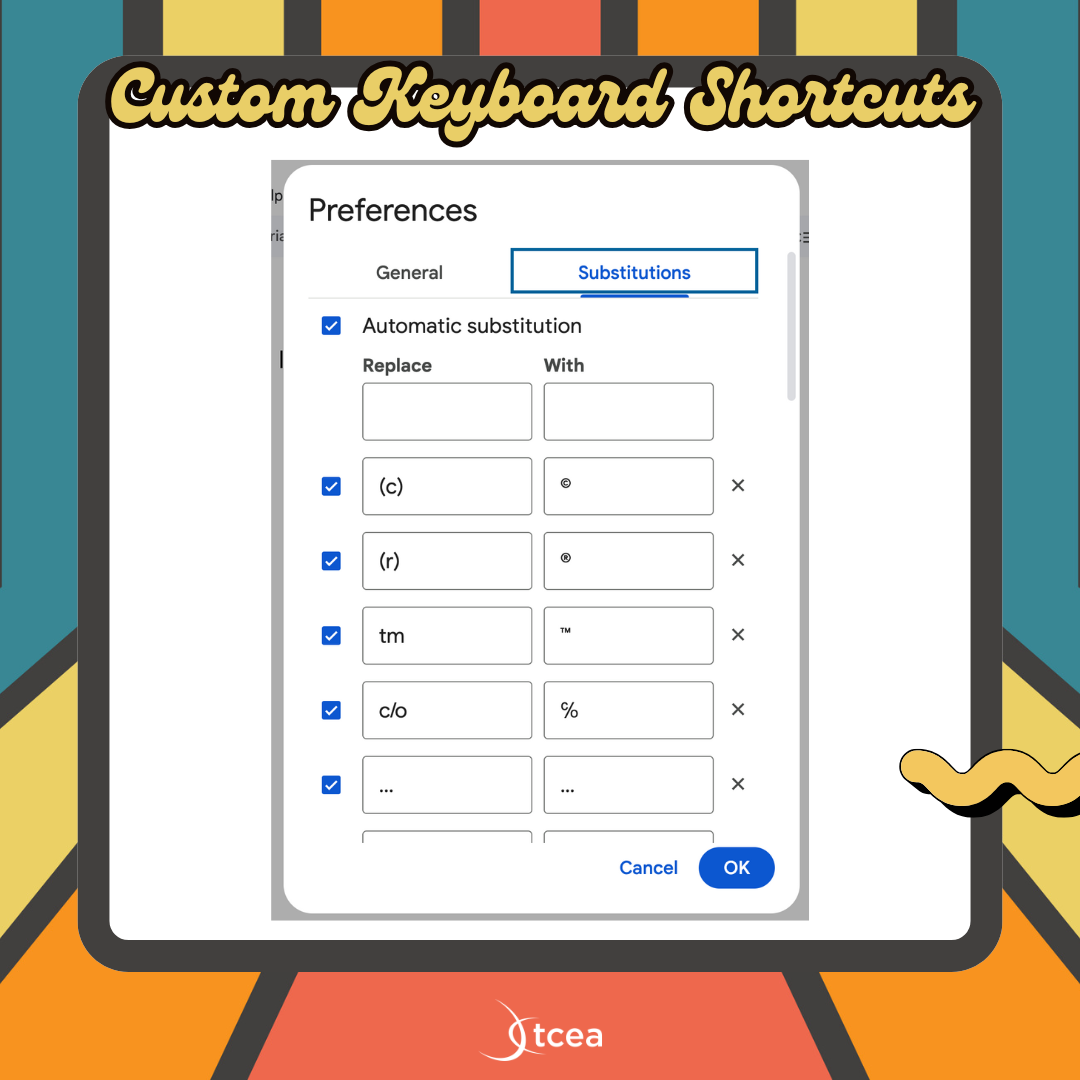
| 💡 Quick Tip 💡 Sometimes, an emoji says it all! Skip the comments and react with emojis in Google Docs for quick feedback and collaboration. To add emoji reactions, Select Text > Go to Insert > Emoji Reaction (Not just "Emoji." Look further down the list for "Emoji Reaction.") If no text is selected, it’ll highlight the word where your cursor is. It’s a fun, fast way to get your point across!  Thanks to https://blog.tcea.org/ for this tip! |
Do you have a tip or idea for the Tuesday Tech Tips? Or a request for a topic or question you'd like to know more about? Please let us know! You can email us at joseph.lombardo@greececsd.org with your submission.
___________________________

This is a friendly reminder for all staff that your district-assigned email account should only be used for work-related purposes. Please don't associate your GCSD email address with, say, your Kohl's account, your Indeed or ZipRecruiter profiles, your personal banking accounts, etc.
Not only will this help you keep your personal and professional online accounts separate, it will help protect GCSD from additional potential spam, malware, and other fraudulent emails that our systems are constantly monitoring for.
Similarly, please always use your work email for work-related communications, such as correspondence with parents, families, and students.
___________________________

Did you know that May 2 is Digital Wellness Day? This is not just a day- it’s a worldwide call to pause and reassess our relationship with technology.
One of the ways we can support our students and community is to focus on how we can be a model for digital wellness. To kick things off, consider taking the 1 Week Digital Wellness Challenge linked HERE!
___________________________
___________________________


Reminder for staff with Windows devices- you have access to the Software Center! It lists the software applications that are available for you to install on your Windows desktop, laptop, and Interactive Panel.
The Software Center can be found by clicking on the Windows icon in the lower left, and searching for "Software." It's the first option that comes up.
___________________________
Are you a GTA member who needs to finish up your required 10 hours of PL by the hard deadline of June 1st? Are you looking for high-quality professional learning related to Instructional Technology?
Be sure to check out the ITT page for Recommended Professional Learning opportunities HERE, where you’ll find webinars, certifications, and especially some new AI learning material…all for PL credit!
___________________________

For assistance with these topics, or anything else related to instructional technology, please click HERE to book an appointment with your building's ITT.
'