Google Analytics

Showing posts with label Google Forms. Show all posts

Tuesday Tech Tips 2-25-25


In today's edition, you can learn about:

  • Does MagicSchool AI really just write students' assignments for them?
  • A new setting in Google Forms to help avoid confusion when sharing a Form with someone
  •  New #WinAtSocial features
  • and more! ➡️ ➡️➡️  

πŸ’‘ Quick Tip πŸ’‘

Using the Snooze feature in Gmail helps you manage you email workload by deferring less urgent emails and allowing them to focus on what’s important at the moment.

Hover over the email you want to snooze in your inbox. Click on the clock icon (Snooze) that appears to the right of the email.
Select a time frame from the options provided.


Snoozed emails can be found in the “Snoozed” folder located in the left sidebar. If you change your mind, simply go to the “Snoozed” folder, open the email, and click on the “Unsnooze” option to return it to your inbox immediately.


Do you have a tip or idea for the Tuesday Tech Tips? Or a request for a topic or question you'd like to know more about? Please let us know! You can email us at joseph.lombardo@greececsd.org with your submission.
___________________________


We know there's a concern that AI will just do students' work for them. Please have a look at this interaction between an real GCSD student and our MagicSchool AI platform. The student's prompt is in purple at the top, and MagicSchool's response is what follows.


Have you found the benefits from using AI (Artificial Intelligence) to enhance your teaching and work related tasks? Want to guide your students to learn the benefits of using AI? Join the MagicStudent Pilot for grade 3-12 teachers! Learn about the pilot HERE and contact your ITT to get started today!
___________________________


Google has implemented a change in the way users send and add collaborators to Google Forms. This adjustment was motivated by a desire to alleviate confusion that arose when users inadvertently added collaborators instead of sharing a link to the fillable form.

Previously, the distinction between adding collaborators and sharing the form was not as clear, leading to instances where individuals were granted editing rights when the intention was simply to allow them to fill out the form. To address this issue, Google has redesigned the sharing and collaboration process in Google Forms to more closely resemble that of Google Sites.

With this update, there is now a clearer separation between adding collaborators, who have the ability to edit the form, and publishing a link that enables others to view and complete the form. This distinction aims to provide a more intuitive user experience and minimize instances where unintended access is granted.

HERE is a link to Google's support page explaining how to publish a link for someone to fill out.

___________________________


For staff who have an active #WinAtSocial account, check out these new features! New to #WinAtSocial? Find out about #WinAtSocial here (for grades 3-12) and contact Lynn Girolamo for an account!

 Platform Playbooks are now embedded in your #WinAtSocial dashboard! Log in to your #WinAtSocial account, click on Resources, then Platform Playbooks to get information about expert breakdowns of popular apps, sites, and games and insights into how students can use them positively!
Also, check out the expanded Professional Learning opportunities with The Social Institute with their asynchronous educator courses.


NEW: Proactive Skill-Building in 10-15 Minutes:  Want to play a single Huddle rather than a whole lesson? Run #WinAtSocial in quick 10-15 minute sessions, making it easy for you to integrate into your schedule and focus on specific Huddles that meet your students' needs.


___________________________


Are you looking for high-quality professional learning related to Instructional Technology? Contact your ITT if you’d like to customize PL for your building, team, or department. Also, be sure to check out the ITT page for Recommended Professional Learning opportunities HERE, where you’ll find webinars, certifications, and especially some new AI learning material…all for PL credit!

___________________________


For assistance with these topics, or anything else related to instructional technology, please click HERE to book an appointment with your building's ITT.

'

Special Edition: Student Access to Google Additional Services 2-11-2025


As previously communicated, there are some changes coming on February 28th at 3:00 regarding GCSD students and their access to some Google products.  None of this impacts staff access to any resource.  It may, however, impact how some instruction is delivered.  

This is NOT a Greece decision, and will affect all districts in New York state.

We've compiled the following FAQ to address concerns and help you be informed and prepared for this change.  Included in this FAQ is a response to every topic from the questions we received as a result of our email to all staff on this subject on February 3.


What services are NOT affected?  

The following Google Core Services will not be affected:  

  • Google Drive

  • Google Docs

  • Google Slides

  • Google Sheets

  • Google Classroom

  • Google Calendar

  • Google Keep

  • Google Meet

  • Google Sites


Okay then, what tools are we talking about here?  

Students will no longer have access to these tools: 

  • www.YouTube.com

  • Google Translate*

  • Google Photos

  • Google Maps

  • Google News

  • Google Earth

  • Google Groups

  • Chrome Web Store

*Students will still be able to use most functionality in Google Translate.  See below.


Whoa, YouTube?  I use YouTube in my instruction regularly!  Does this mean I can't do that any more?

You can absolutely still use YouTube in your instruction.  In fact, the ways that you can use it are ways that we generally recommend anyways.  There are a variety of methods- many of which remove ads, are interactive, include assessments, and more. 

For a one-page reference for tools that will and won't work going forward, click HERE.  

For a self-paced Nearpod lesson designed for staff to learn about each of the available tools, click HERE. 


What about Google Translate?  

The oral language input of Google Translate is an important feature for English language learners who are not literate in their first language (typically our elementary aged newcomers, but it could be others). What oral language translation tool will be available for these students? 

Students can continue to use Google Translate via the app on their Chromebook, with most functionality, as shown HERE.  The website translate.google.com won't be accessible, but students can either use the app, or a site such as https://itranslate.com/translate

Students can still translate documents within Google Docs by choosing Tools -> Translate Document.  Websites can be translated in Chrome by going to the three dots in the upper right and choosing "Translate."  Or you can right-click anywhere on a webpage and select Translate to [Language].

You can also translate using Google Lens as shown HERE.

In short, the only change will be that students can't access translate.google.com directly.  The other translation functions will continue to work.  


What happened?

In December 2024, Superintendents were notified that Google’s Additional Services (see list below) are not covered under the contract of Google’s Core services, and therefore not compliant with NYS Ed Law 2d.  There is a directive from NYSED to disallow student use of Google Additional Services by March 1st, 2025.


Why did this happen?

Google has firmly resisted complying with the regulations of NYS Ed Law 2d in regards to their Additional Services.  This is separate from their Core Services, as described above, which are covered by NYS Ed Law 2d.  


What is EdLaw 2d?

NYS Ed Law 2d protects student data privacy by requiring schools and third-party vendors to follow strict security protocols. It ensures that vendors sign privacy agreements and gives parents the right to access their children's data.


I use Google Forms for test/quiz for American Sign Language.  I make the signing test questions and upload to YouTube then insert that video into the Google Forms question. Is this process for videos in Google Forms NOT going to work?  How will Google Forms quiz format allow signing videos for a visual language?

This will work as it currently does.


Many of my students use YouTube to listen to music while they are doing independent work. What alternatives will be available to them for this purpose?

Due to licensing issues and inappropriate content, most music streaming sites are blocked.  Pandora is not blocked.  


Will students who use district provided iPads for behavior plans and reinforcement be able to access the YouTube app?

As long as the students do not log into the iPads with their GCSD accounts, they will not be blocked.


Google Photos- does this mean their own images/videos taken with a Chromebook will not be accessible?

Students can still upload these photos to Google Drive or access them locally on the Chromebook.  This won't be an automatic sync, but can be done manually.  


Will this affect staff use? I have a few YouTube videos I show when presenting lessons, can I still access them?

There will be no change.  


How do I get additional support?

As always, please reach out to the ITT's if you would like additional assistance.


11-19-2024 Tuesday Tech Tips


In today's edition, read all about several clever ways to share YouTube videos (including clips of them) with your students or any audience, distance learning opportunities, updates to the teacher view of Lightspeed Classroom, an exciting new feature in Google Forms, another opportunity to win stuff, and more! ➡️ ➡️➡️  


πŸ’‘ Quick Tip πŸ’‘

Did you know you can edit images inside Google Docs and Slides?

In just a few clicks, you and your students can add some pizzazz to your images in Google Docs and Google Slides. You can edit the size, crop, recolor, and more!

See detailed directions HERE and HERE.


Do you have a tip or idea for the Tuesday Tech Tips? Or a request for a topic or question you'd like to know more about? Please let us know! You can email us at joseph.lombardo@greececsd.org with your submission.

________________________________


Update: as of 9/2026, Google has discontinued this functionality.


Did you know you can share short clips from 15 to 60 seconds of many YouTube videos by making a "clip"? You can also create and share a link to a YouTube video that will start the video at a specific point.

  • An explanation on how to clip a YouTube video can be found HERE. That includes instructions how to configure your YouTube settings so you can use this feature.
  • To define a "Start at" time, click the Share button under the video and look for the check box to choose a timestamp. You can also add a timestamp manually by typing special characters after the regular link. The nice folks at Lifewire have written up a detailed guide for both of these methods HERE.


And let's not forget, back in the πŸ’―th edition of the Tuesday Tech Tips HERE, we showed how you can use Watchkin to share YouTube videos without ads.

Using these methods, you can, for example, share a video of Pink Floyd's 1994 performance of Comfortably Numb these three ways:
  • A clip of a particularly spectacular portion of David Gilmour's legendary guitar solo HERE.
  • A "Start at" link beginning at the first solo, or the 2:12 mark, HERE. (may have ads)
  • An ad-free version of the entire video HERE.

This reminds us....even if progressive British rock isn't your bag, there are scores of distance learning opportunities in not just music but all subject areas available for you and your students. These include the Country Music Hall of Fame HERE and the Manhattan School of Music HERE, all available through the Center for Interactive Learning and Collaboration (CILC), which you can learn more about in a previous edition of your Tech Tips HERE.

____________________________


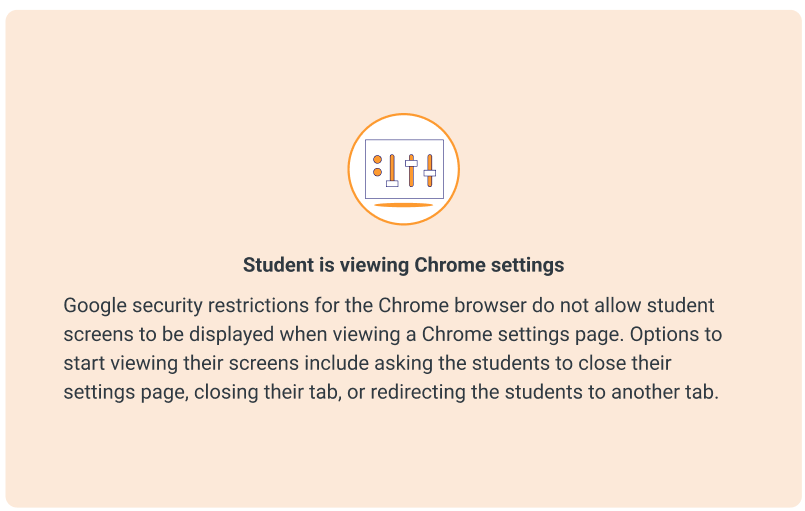
Lightspeed Classroom Management has introduced new thumbnails to assist teachers in troubleshooting why a student’s active screen is not appearing in Classroom Management. The appropriate thumbnail will appear to provide context and help explain why the screen is not showing.

Teachers will see different icons for various situations, such as when a student is viewing Chrome Settings, viewing a blank tab, doesn’t have any tabs open, and so on.

All the details, including examples of the snazzy new icons, can be found HERE.

____________________________


We rate this new feature five stars! ⭐⭐⭐⭐⭐


To add to the list of question types that users can respond to in Google Forms and enable the collection of feedback in a more engaging way, Google recently added a rating question type.
This new question type enables you to customize rating questions by setting a rating scale level from 3 to 10, and include rating icons to offer a more intuitive way to gather opinions from an audience. You can represent your rating with Stars ⭐, Hearts πŸ’–, or Thumbs upπŸ‘.
With this update, you'll be able to analyze responses to these questions (e.g. average rating of responses and visual distributions of ratings) using the Summary tab of the responses section. All the details on this new question type, and all Forms question types, can be found HERE.

What do you think of this new feature? Let us know (and get a chance to win great* prizes) HERE.
 

*As stated in a previous Tuesday Tech Tips Prize Giveaway, "great" is a relative term.  Pens, stickers, and other tchotchkes are, for these purposes, "great."

________________________________


For assistance with these topics, or anything else related to instructional technology, please click HERE to book an appointment with your building's ITT.

'