
SAFETY ALERT
Recently a school district experienced a fire caused by devices were stacked on each other while charging. Please make sure devices are not stacked and have some space to ventilate while charging.
📽 🛠 🔋 In today's Tuesday Tech Alerts, read all about showing movies in the classroom, an easy troubleshooting step you can take when having any issue with a website, some Chromebook battery management recommendations, and more! ➡️➡️➡️ | 💡 Quick Tip 💡 Instead of sending someone a boring old link to an entire website or page, impress them by linking right to specific text on the site.  |
________________________________________________________________
 |
| If you're under age 30 and you know who this is, then two thumbs up for you |
The Reviews Are In On Showing Movies in School
It's a Thumbs Down from Ebert: "Here's the part that GCSD moviegoers aren't going to like: Per their user agreements, streaming services such as Netflix*, Hulu, Disney+, etc. may NOT be used in classrooms. It's not Greece, it's them. And the district has a legal obligation to enforce copyright laws."
It's a Thumbs Up from Siskel: "You're no fun, Roger! Let's remind them of the good news: Every teacher has access to Swank Streaming Services. It's in ClassLink, or you can log in HERE. There are currently over 500 major motion pictures available to legally stream on Swank."
Thanks, guys! The details on all of this, including a small exception to the Netflix user agreement, can be found HERE. Grab some popcorn and enjoy a nice read.
________________________________________________________________

Website Issues? Fix it Fast: Just Clear the Cache
When running into a problem with any web-based resource (i.e. a website), whether using a Chromebook or a Windows device, a great first step for you or your students to take is to clear the browser's cache. This will often solve the issue. It's quick and easy, the directions below are also linked HERE.
- At the top right in Chrome, click the 3 dots "snowman" icon
- Click More tools
Clear browsing data.
- At the top, choose a time range. To delete everything, select All time.
- Next to "Cookies and other site data" and "Cached images and files," check the boxes.
- Click Clear data.

Close Chrome, reopen it, and see if that did it. According to a statistic I just made up, clearing the cache will fix the problem 26% of the time.
________________________________________________________________
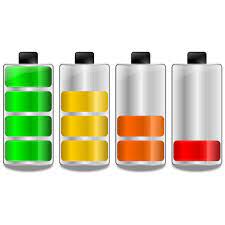
Chromebook Power-Saving &
Battery Management Tips
Are you or your students experiencing your Chromebooks running low on battery power more quickly than you'd like? Check out the following Chromebook battery power-saving tips that the nice folks at Haverford High School in Haverton, PA put together. They include:
___________________________________________________________

For assistance with these topics, or anything else related to instructional technology, please book an appointment with your school's ITT.


No comments:
Post a Comment
Send feedback or suggestions!