Google Analytics

3-26-2024 Tuesday Tech Tips


In today's Tuesday Tech Tips, read all about creating presentations, posters, and more with Canva, an update on GCSD's USB device policy, access to copyright-free music through Soundzabound, and more! ➡️ ➡️➡️  


💡 Quick Tip 💡


It's that easy.


Do you have a tip or idea for the Tuesday Tech Tips? Or a request for a topic or question you'd like to know more about? Please let us know! You can email us at joseph.lombardo@greececsd.org with your submission.
_____________________


Have you dipped into the Canva Craze yet? Canva is an online graphic design tool you can use to create social media posts, presentations, posters, videos, logos and more. Canva makes it easy to create and share professional-looking designs.

Canva can be accessed through ClassLink and by using the "Sign in with Google" option. You should see that you're in the "Education" version with full access to all the bells and whistles. As always, reach out to your ITT for support and/or to schedule PL for your building or teams. Additionally, teachers may find this Guide HERE helpful to explore. Start creating today!
_____________________


USB Media Restrictions

As part of the process outlined in a district-wide email you received on December 18, TSS is restricting the use of USB drives (i.e. thumb drives, flash drives, external hard drives) on district devices. This is the result of a long and deliberate journey initiated by several cybersecurity audits and insurance reviews. Most nearby school districts have either already restricted USB drives, or are in the process of doing so.

This policy has already been fully implemented in our elementary schools, and we expect to have the policy set for all schools and buildings by Thursday, March 28.

We recognize there are some scenarios that require exceptions to allow USB media access for specific district devices or situations. There are two levels of exceptions:


USB UNRESTRICTEDAPPROVED devices with minimal PII concerns and files that need to be transferred between devices that cannot support encryption
USB ENCRYPTED
read allowed; encrypted for write
presentation stations; special visits; approved computer to computer transfers (encryption used)


To request an exception, please submit a ticket via Web Help Desk. Use request type "Online Forms," sub-type "USB Media Access Request." Thank you for helping us keep our district and student data safe.
_____________________


Soundzabound is a collection of copyright-free background music and sound effects available to all staff and students in GCSD. They can be used for any type of school project, sports, extracurriculars….basically anything to do with school.

One of the collections is called LO-FI Study Music.  This is designed to enhance focus and concentration in various settings such as the cafeteria, library, and classrooms

To access Soundzabound, click HERE.  You can also get to it through your school library's webpage.  If prompted, use the username grmonroe and password boces2.  

_____________________


Looking for PL Hours? Be sure to check out the ITT’s page for Recommended PL HERE. You’ll find upcoming webinar and session opportunities, as well as ongoing opportunities for digital tool certifications and self-paced learning. These offerings are updated frequently so bookmark the site and check back often!
_____________________


For assistance with these topics, or anything else related to instructional technology, please click HERE to book an appointment with your building's ITT.


3-12-2024 Tuesday Tech Tips


In today's Tuesday Tech Tips, read all about keeping your Gmail organized with Snoozing and Google Tasks, checking  for signs of cheating with Version History, facilitating difficult classroom conversations with technology,  and more! ➡️ ➡️➡️  


💡 Quick Tip 💡

Do you find the "new message" window in Gmail to feel a little claustrophobic?  Do you want it to default to a larger window?


This short video will show you how to set this to your default view.  Then you can enjoy a nice, roomy, email-writing experience!


Do you have a tip or idea for the Tuesday Tech Tips? Or a request for a topic or question you'd like to know more about? Please let us know! You can email us at joseph.lombardo@greececsd.org with your submission.
_____________________

Pass by Securly has been added to all district Chromebooks in the Apps section in the lower left when no one is signed into the device. This is the same place we use for apps for state testing. The app is there only for the schools who use Pass, and this will allow staff to make any Chromebook a kiosk for Pass by Securly. Schools that use this will receive a separate communication from their building's ITT with more details.


If you click on any of these Apps accessible on the sign in screen and get "stuck" in them, press the power button on the Chromebook for one second, then click "Sign Out."
_____________________

Attention K-2 Teachers: We've been working closely with both Google and ClassLink to solve the issue where students access their Chromebooks via a QuickCard, but can't access Google apps without supplying a password one time.

The issue is resolved.  Your K-2 students can now access  Drive, Docs, etc. without being prompted for a password. Thanks for your patience while our partner vendors worked through this.
_____________________

You Snooze, You Don't Lose


Trying to keep an organized Gmail inbox? Try one of these: snooze 😴 or task ✅ your Gmail messages! Click HERE to learn more about snoozing messages in Gmail and HERE to learn all about Google Tasks.

_____________________

Combat Academic Dishonesty with Version History


With the proliferation of AI writing tools, it's easier than ever for students to find written work on the internet to copy and paste into Google Docs and submit as their own.

One tool teachers have to fight this is Version History in Docs. In any Doc, such as one written by a students, go to File --> Version History --> See Version History. If you see that one moment the Doc is blank, and the next an entire page of text appears, that may be a reason to have a conversation with the student to understand how that happened. It's important to remember, there are legitimate reasons that could explain it, but it's probably worth a conversation.

All the edits made to the Doc can be viewed, along with the time they were made, allowing it to be compared with the previous versions. The editor's name also appears next to the specific edit if the document has multiple editors.

For more details on working with Version History in Docs, click HERE.

_____________________


Using Tech to Facilitate Difficult Classroom Conversations

Technology can enable middle and high school students to contribute more freely to discussions on challenging topics and events.

This article from Edutopia HERE describes how one teacher used Nearpod, utilizing its ability for students to post anonymously and the teacher to screen and approve posts, to facilitate a challenging discussion in a thoughtful, respectful, and developmentally appropriate manner.

In the end, the teacher "was astounded by how robust and respectful the Nearpod conversations were. Students wrote profound and thoughtful posts, offered multiple responses to each question, and stayed engaged throughout the activity."

Your ITT's have curated resources related to Nearpod HERE. Please reach out to us HERE for more support.
_____________________


Looking for PL Hours? Be sure to check out the ITT’s page for Recommended PL HERE. You’ll find upcoming webinar and session opportunities, as well as ongoing opportunities for digital tool certifications and self-paced learning. These offerings are updated frequently so bookmark the site and check back often!
_____________________


For assistance with these topics, or anything else related to instructional technology, please click HERE to book an appointment with your building's ITT.



2-13-2024 Tuesday Tech Tips


In today's Tuesday Tech Tips, read all about using Emojis (yes, Emojis!) in your instruction, creating your own Emojis, how to check if a website is blocked for your students, the wide range of protections you can use in your Google Sheets, and more! ➡️ ➡️➡️  


💡 Quick Tip 💡

Did you know that Google’s search box doubles as a calculator? Enter in your equation and hit enter- it’s that easy. It’s also flexible with how you type the equations, for example, "12 x 12," "twelve times 12,"or "12 times 12" will all work.

See what we did here?


Do you have a tip or idea for the Tuesday Tech Tips? Or a request for a topic or question you'd like to know more about? Please let us know! You can email us at joseph.lombardo@greececsd.org with your submission.

________________________________


We hope you find reading this entry to be mind-blowing


How to Use Emojis in Teaching

Emojis are fun little characters that can add visual cues to student assignments and help you manage classroom routines.

This article HERE from Edutopia has many ideas that go beyond the popular or common ways we use emojis (in text messages, comments, and social media posts), and connect to projects and routines you might already be using in your classroom.

**Bonus Tip**: Have you ever wanted to use an emoji to communicate an idea, and couldn't find the right one? With Emoji Kitchen, linked HERE, you can take two emojis and combine them into one. For example, to communicate the idea of a basketball 🏀 scholarship 🎓, mix them together in the Emoji Kitchen and get this:


Or, for Valentine's Day tomorrow, tell your true ❤️ you want to take them out for 🥞 with this:


How romantic! The possibilities are endless, and with that linked article above, you can find meaningful ways to use these in instruction. Emojis aren't just a

________________________________


Blocked for Thee, But Not for Me?


Have you ever run into a situation where you vetted a website to use with your students, only to realize during the lesson that it's blocked for them? Our filtering rules have different criteria for staff compared to students, and are more restrictive for students, leading to this frustrating scenario.

You have an extension called Lightspeed AccessScan which you can use to preemptively prevent this from happening to you.

AccessScan is easy to use, and the extension is already available for you in Chrome. This video from the vendor linked HERE demonstrates how to use it.


________________________________


Protect, Hide, & Edit Your Google Sheets

There are many settings in Google Sheets that allow you to granularly protect your Sheet, right down to individual cells. You can even set it up to show a warning when anyone makes an edit. It doesn’t block people from editing, but they’ll see a message asking them to confirm if they really want to make an edit.

Google can explain this much better than we can. Check out all of their instructions on how to protect, hide, and edit Sheets HERE.

________________________________


Looking for PL Hours? Be sure to check out the ITT’s page for Recommended PL HERE. You’ll find upcoming webinar and session opportunities, as well as ongoing opportunities for digital tool certifications and self-paced learning. These offerings are updated frequently so bookmark the site and check back often!


________________________________


For assistance with these topics, or anything else related to instructional technology, please click HERE to book an appointment with your building's ITT.


1-30-2024 Tuesday Tech Tips

Welcome to the 💯th edition of the Tuesday Tech Tips!

In today's Tuesday Tech Tips, read all about a quick way to take a screenshot on a Chromebook, a resource to use YouTube ad-free with your students or in presentations, a scam targeting school district employees in Monroe County, a free random name chooser and group maker that lets you save your lists, and more! ➡️ ➡️➡️  


💡 Quick Tip 💡

We recently told you about the Windows keystroke shortcut to take a screenshot. By request, today we're sharing how to do it on a Chromebook.

 
Control + Show (the key above the 6 that looks like a rectangle next to two vertical lines) takes a screenshot of the whole screen.

Control + Shift + Show lets you select an area to take a screenshot of.  

Find all the details on this HERE, with a BONUS TIP on how to record your Chromebook screen. 


Do you have a tip or idea for the Tuesday Tech Tips? Or a request for a topic or question you'd like to know more about? Please let us know! You can email us at joseph.lombardo@greececsd.org with your submission.

________________________________


Use YouTube ad-free with Watchkin

The ads in YouTube can be a real intrusion into a lesson or presentation that incorporates a YouTube video. For those of you that remember ViewPure, Watchkin operates in essentially the same way. Viewpure was blocked in GCSD since it turned out to be a way for students to circumvent our filters. It's also out of business, so there's that, too. Watchkin is currently an alternative. For example, at this link you can enjoy highlights of Notre Dame dismantling USC in tackle football, but, you're likely going to be presented with ads: Alternatively, using Watchkin, you can watch the same glorious video at this link, without those pesky advertisements: If you visit Watchkin.com, the process will be clear. Please note, there's documentation on their site about adding a bookmark and an extension to convert a YouTube link to a Watchkin link- however that currently isn't available in our environment. But with a quick copy and paste, your YouTube links can become ad-free Watchkin links.
________________________________


No, the Superintendent isn't Texting You


We recently became aware of a scheme happening where a staff member gets a text purporting to be from Superintendent Kathy Graupman. There are texts like the one shown above being sent with the names of at least four other district superintendents in Monroe County.

Please have a look at the screenshot of the texts. It comes from area code 213, which is in Los Angeles. The initial text is signed "Thanks, Ms. Kathleen Graupman." No one besides my mother signs their texts. The initial text included a sense of urgency with "text me back as soon as you can." Things like this should make you question the validity of a text.

There is virtually no legitimate scenario where an urgent text or email comes from out of the blue from someone you don't regularly communicate with. Please remember to remain vigilant to avoid being the victim of a scam.

And don't ever buy gift cards for someone on the internet. Ever.
________________________________


Random Name Selector and Group Maker

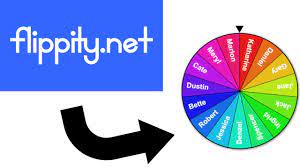
There are plenty of sites out there that let you make as random name chooser, but most of them don't let you save your work, or they're overloaded with ads, or both. We've got a solution for you that's almost ad-free*, lets you save your lists, and is very easy to use.

Check out flippity.net HERE. There's enough there to keep you busy for very long time, but we're looking at the top row, 4th column, "Random Name Picker." Click "Instructions," follow the directions, and in just seconds, you can create and save your random name choosers/group makers.

For example, are you having a hard time deciding which ITT is your favorite? Get help deciding with the spinner HERE.

  • Okay let's clarify that asterisk* above. When you go to the Flippity home page, there are ads. But, the spinners and other tools you create there don't have ads. So when you pull up your random name chooser like this one HERE on your Interactive Panel in front of your class in the moment, there won't be any ads.


When SMART Notebook retired their name chooser, that was a dark day for many of us. Flippity can make those clouds go away.

________________________________


Looking for PL Hours? Be sure to check out the ITT’s page for Recommended PL HERE. You’ll find upcoming webinar and session opportunities, as well as ongoing opportunities for digital tool certifications and self-paced learning. These offerings are updated frequently so bookmark the site and check back often!


________________________________


For assistance with these topics, or anything else related to instructional technology, please click HERE to book an appointment with your building's ITT.